 .
(To see the button, it may be necessary to extend the toolbar - press the
.
(To see the button, it may be necessary to extend the toolbar - press the button,
additional buttons will pop up). The Toolbars menu option is on the View Menu.
button,
additional buttons will pop up). The Toolbars menu option is on the View Menu.Route Navigation Toolbar Buttons
To turn on a toolbar: If the Main Menu (File / View / Map) is
not showing on the Program Menubar, on the menubar press the show menu button
.
(To see the button, it may be necessary to extend the toolbar - press thebutton,
additional buttons will pop up). The Toolbars menu option is on the View Menu.
Tooltips (hints) are provided for most toolbar and dialog buttons. Hold a button down and the tooltip will appear, slide the stylus off the button and the option will not be activated.
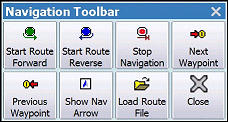
The toolbar can be displayed as a large window version or the small toolbar style.

 |
Next waypoint - Move navigation forward to the next waypoint of the route. To move forward two waypoints, press this button twice. |
 |
Previous waypoint - Move navigation back to the previous waypoint of the route. To move back two waypoints, press this button twice. |
 |
Start Route Forward - Turns on forward navigation along route. |
 |
Start Route Reverse - Turns on reverse navigation along a route. |
 |
Stop Navigation - Turns off navigation. |
 |
Show Nav Arrow - Show/Hide the Direction Arrow Window (only available while navigating). |
 |
Load Route File - Load a route from an PC OziExplorer route file (.rte) or an OziExplorerCE (.rt2) file. |
 |
Close - Close navigation toolbar. |